1. Sign in as an administrator
PlayFootball Administrator access

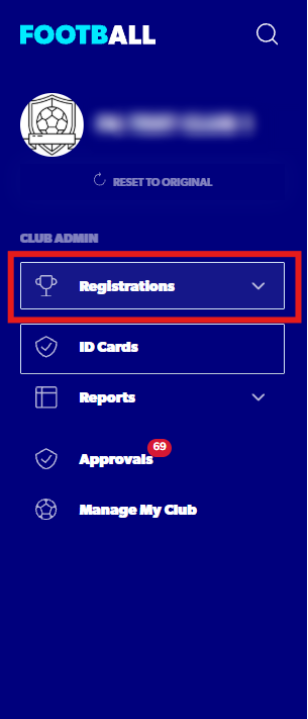
2. Select Registrations
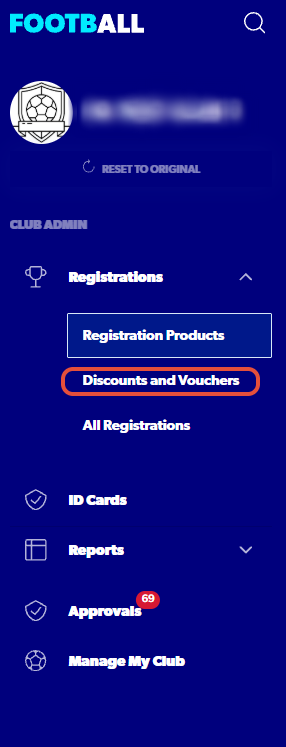
3. Click Discounts and Vouchers
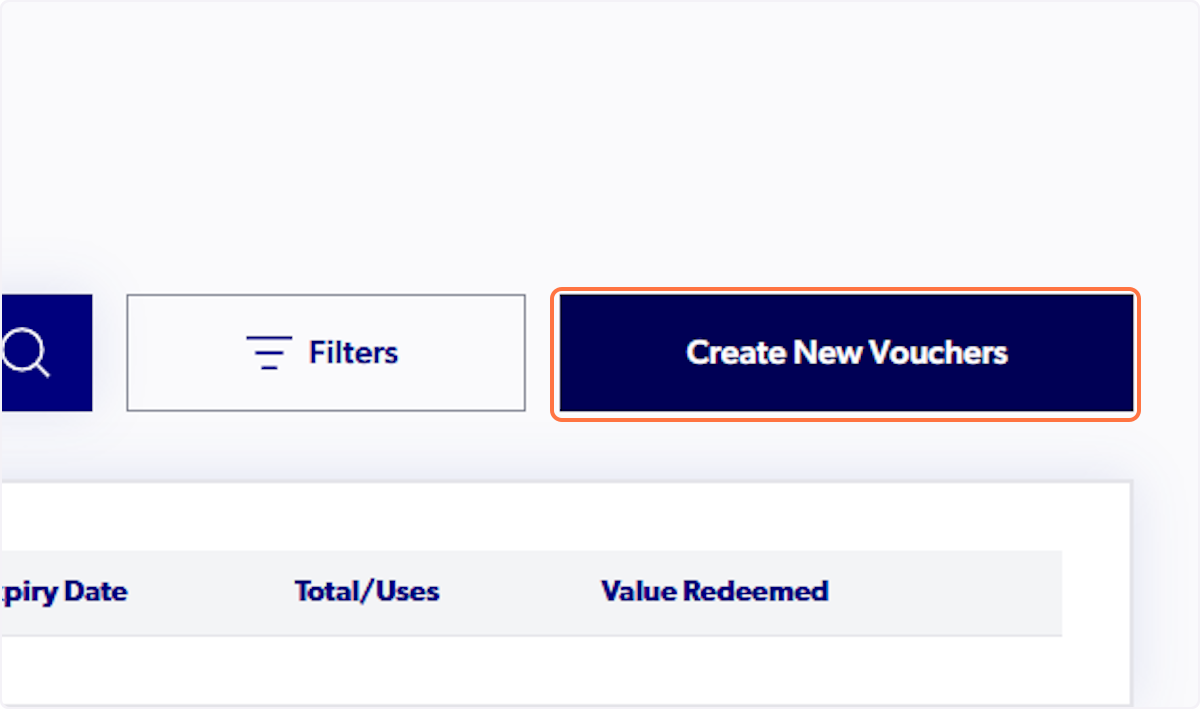
4. Click on Create New Vouchers
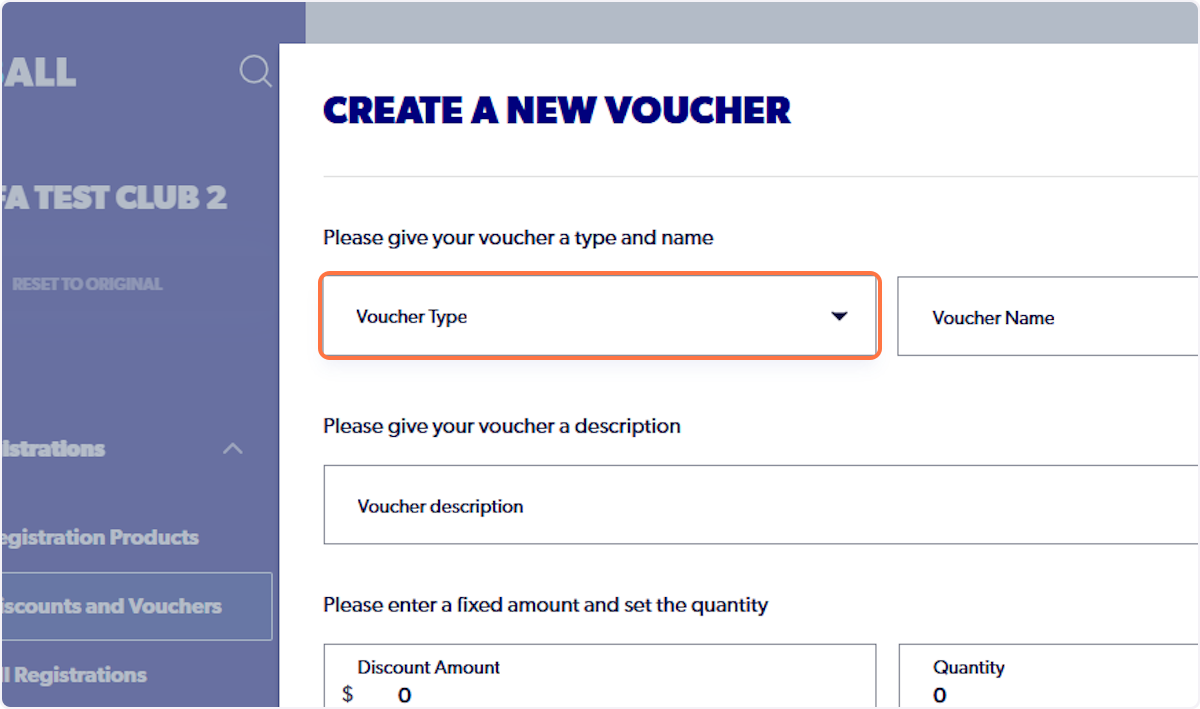
5. Click on Voucher Type
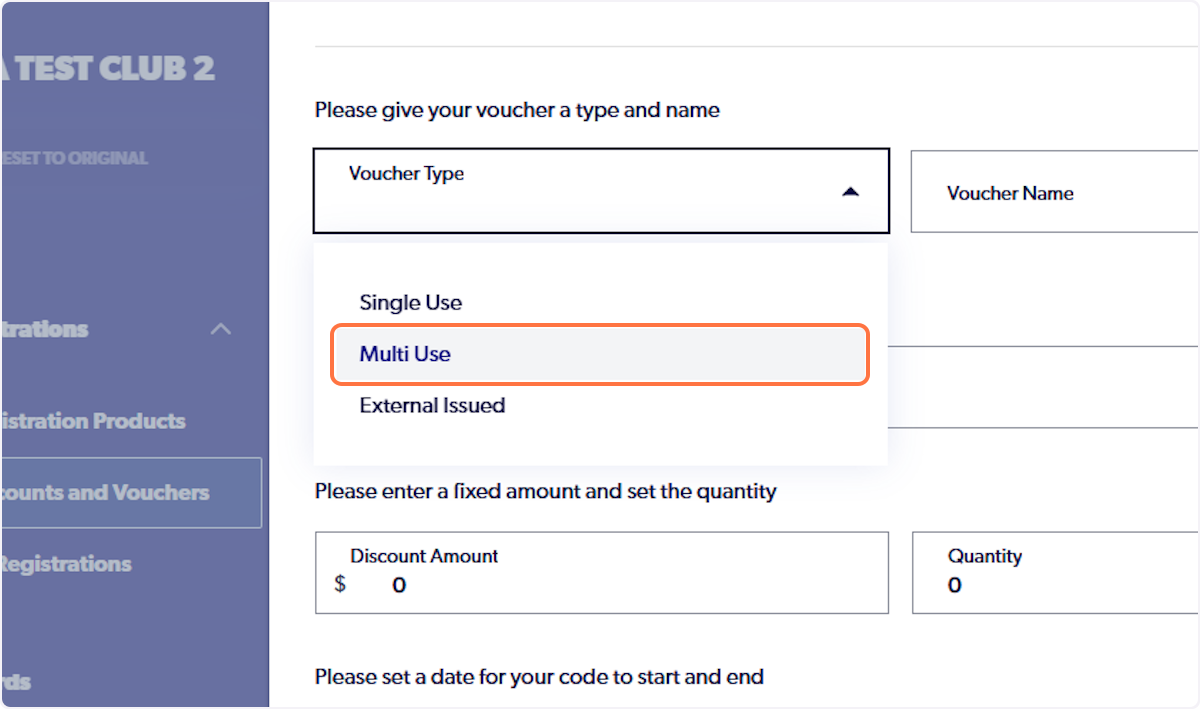
6. Click on Multi Use
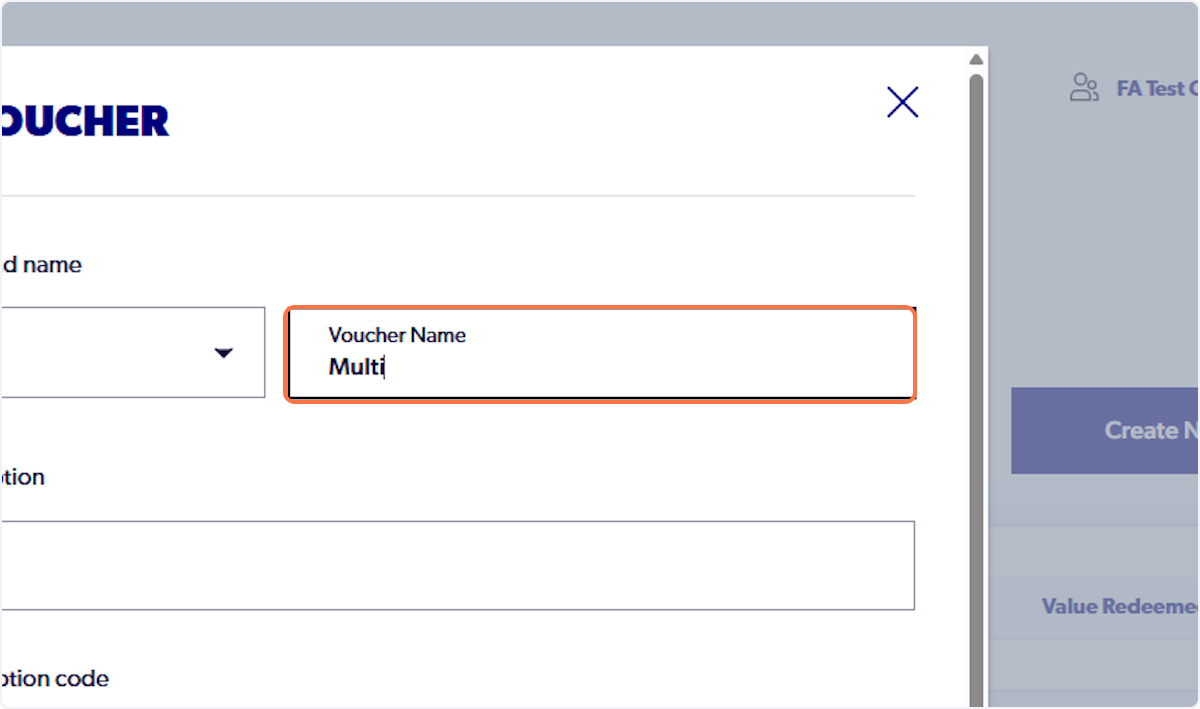
7. Name the Voucher
8. Add a Voucher description
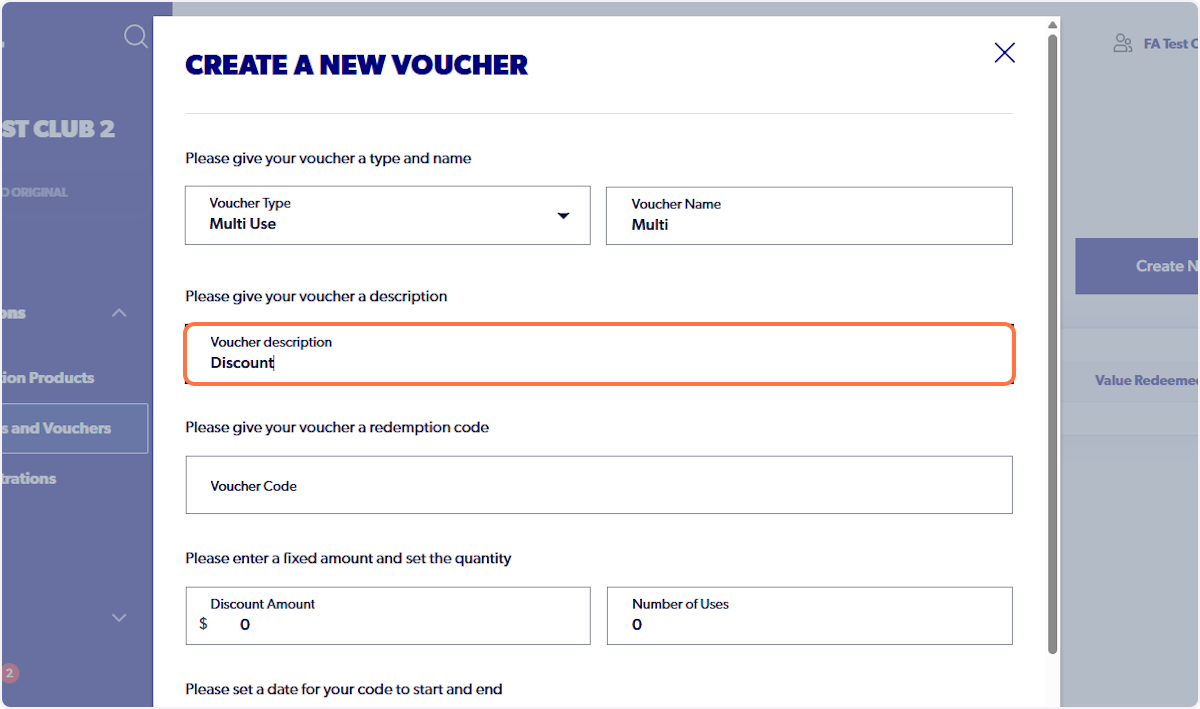
9. Add the Voucher Code
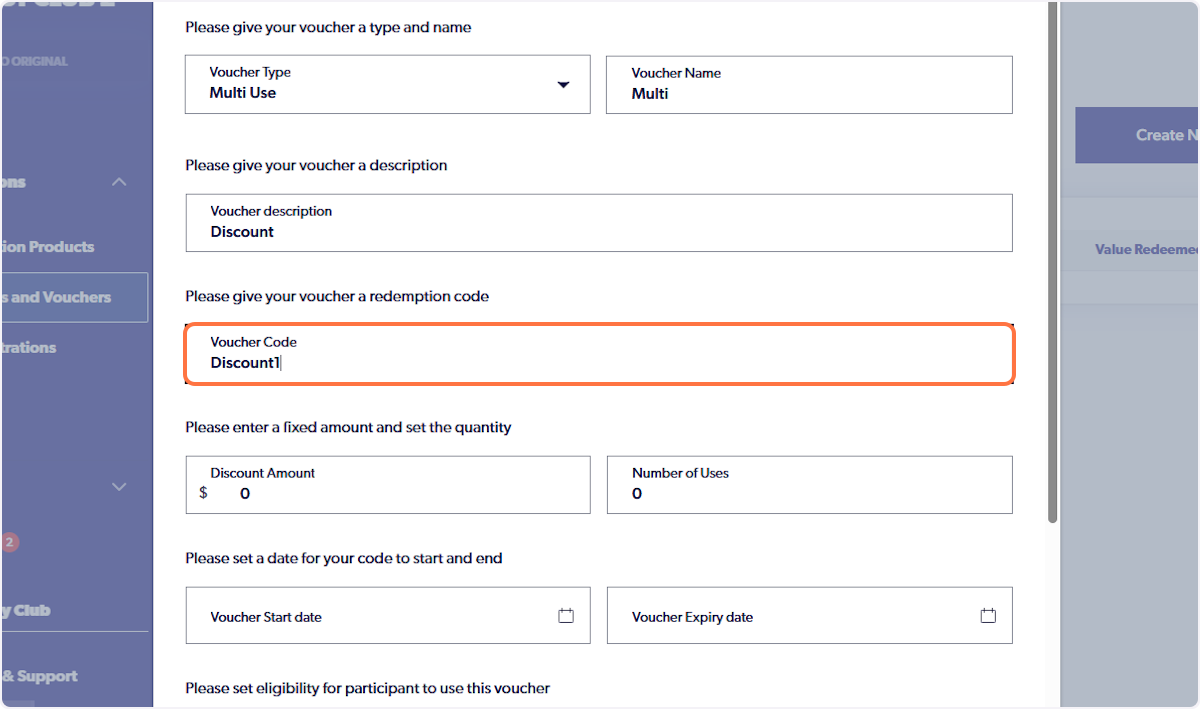
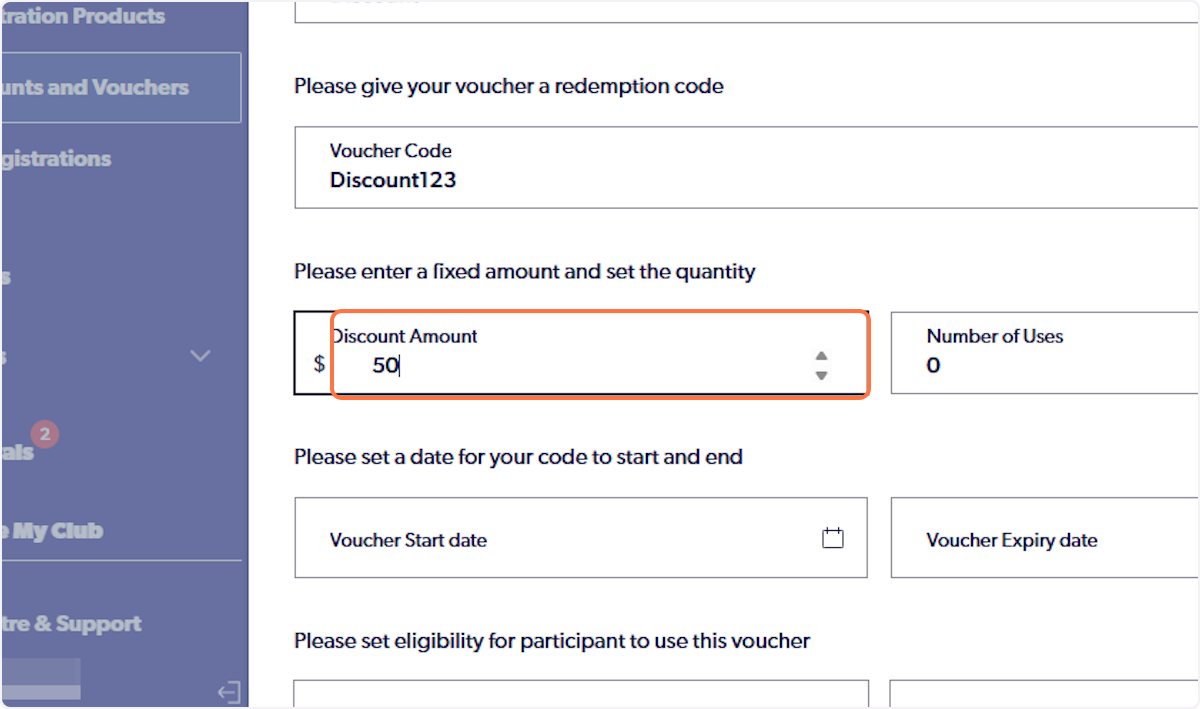
10. Enter the Discount Amount
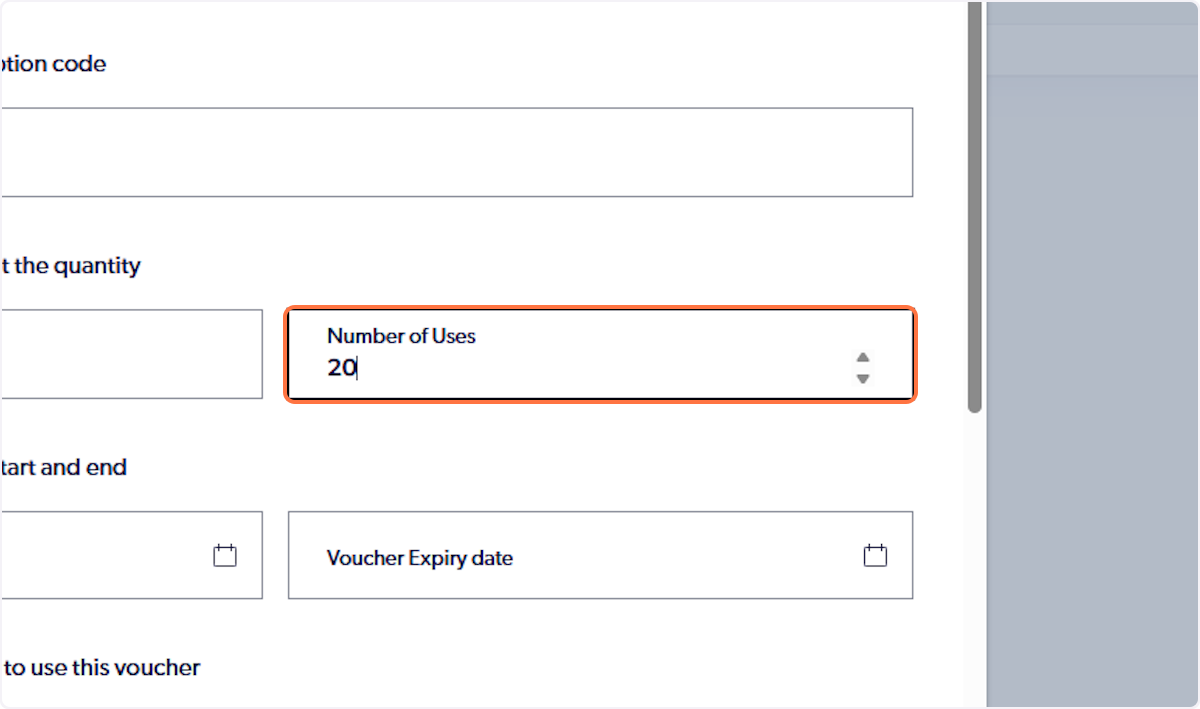
11. Select the Number of uses
This is how many times this code can be used.
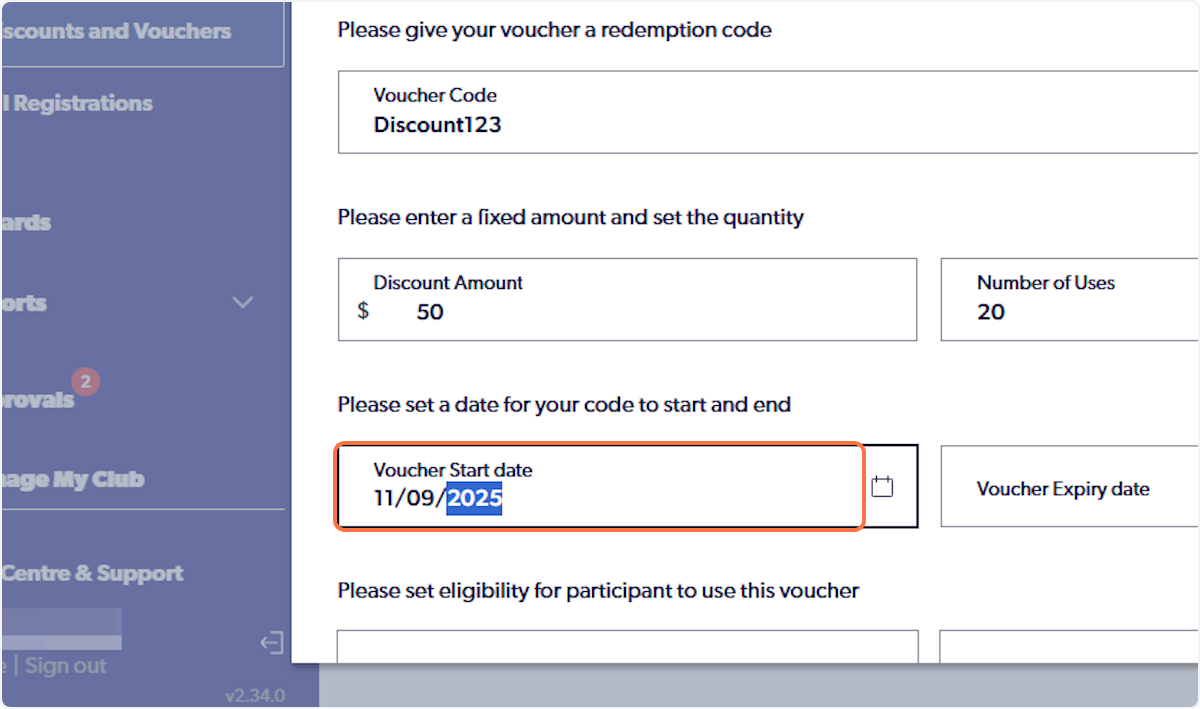
12. Select the Voucher Start Date
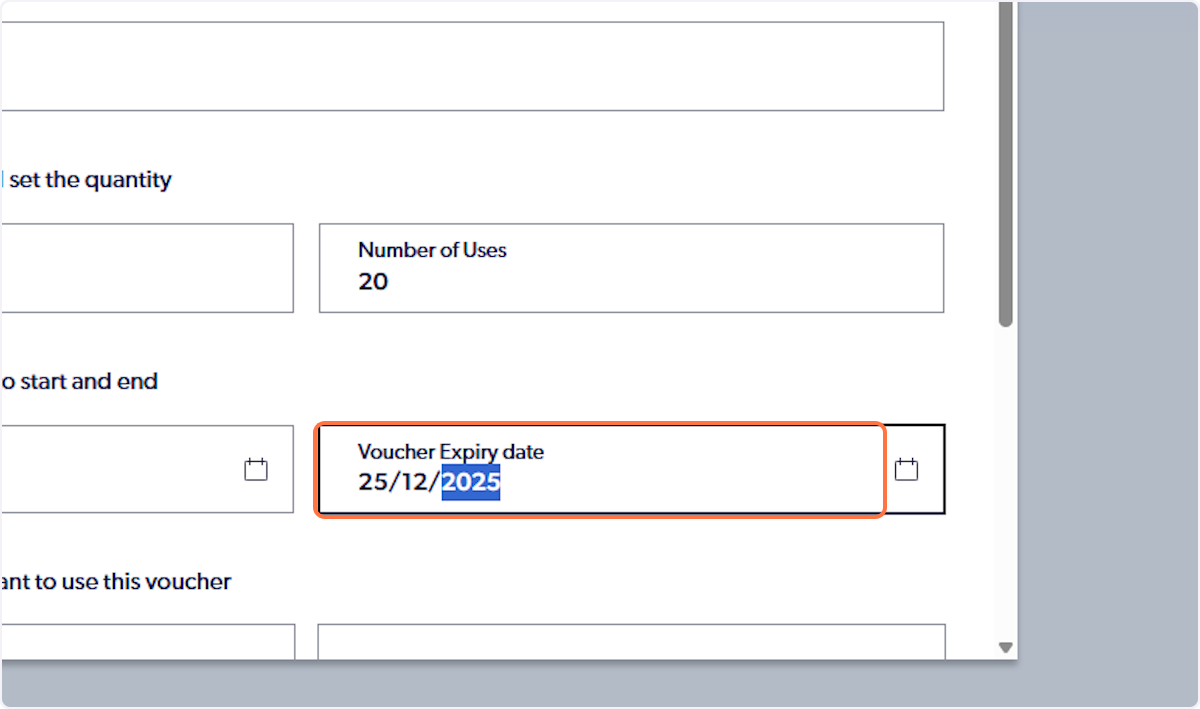
13. Select the Voucher Expiry Date
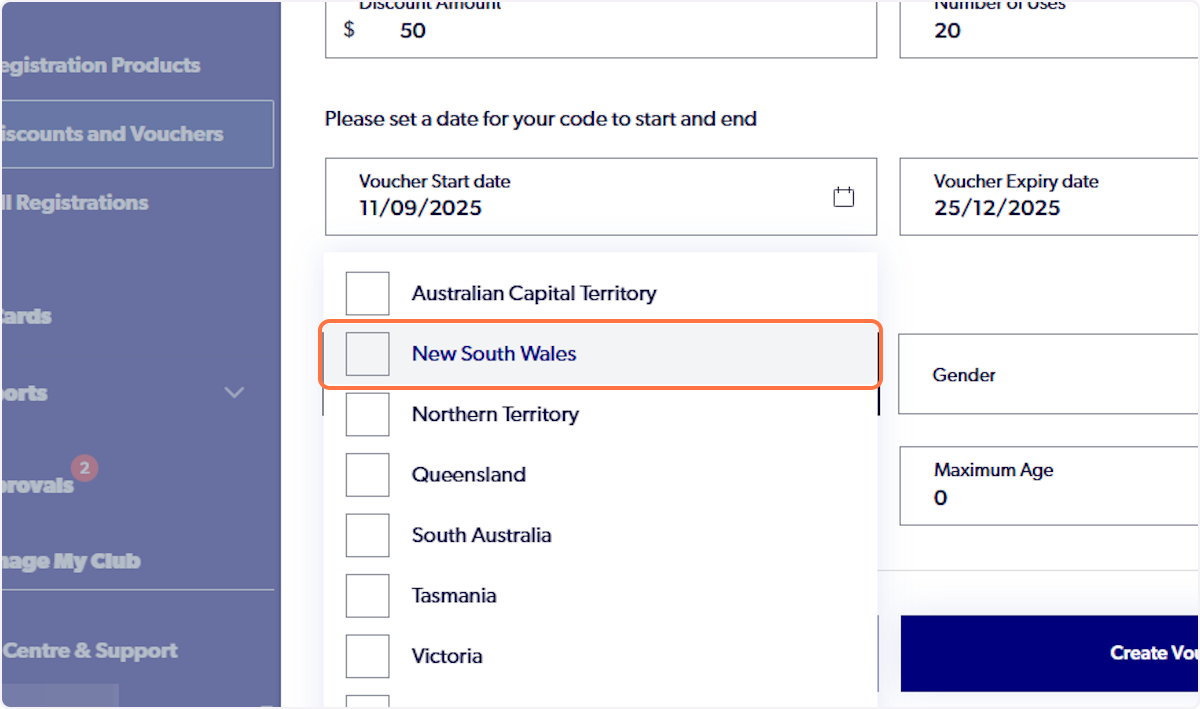
14. Choose the State
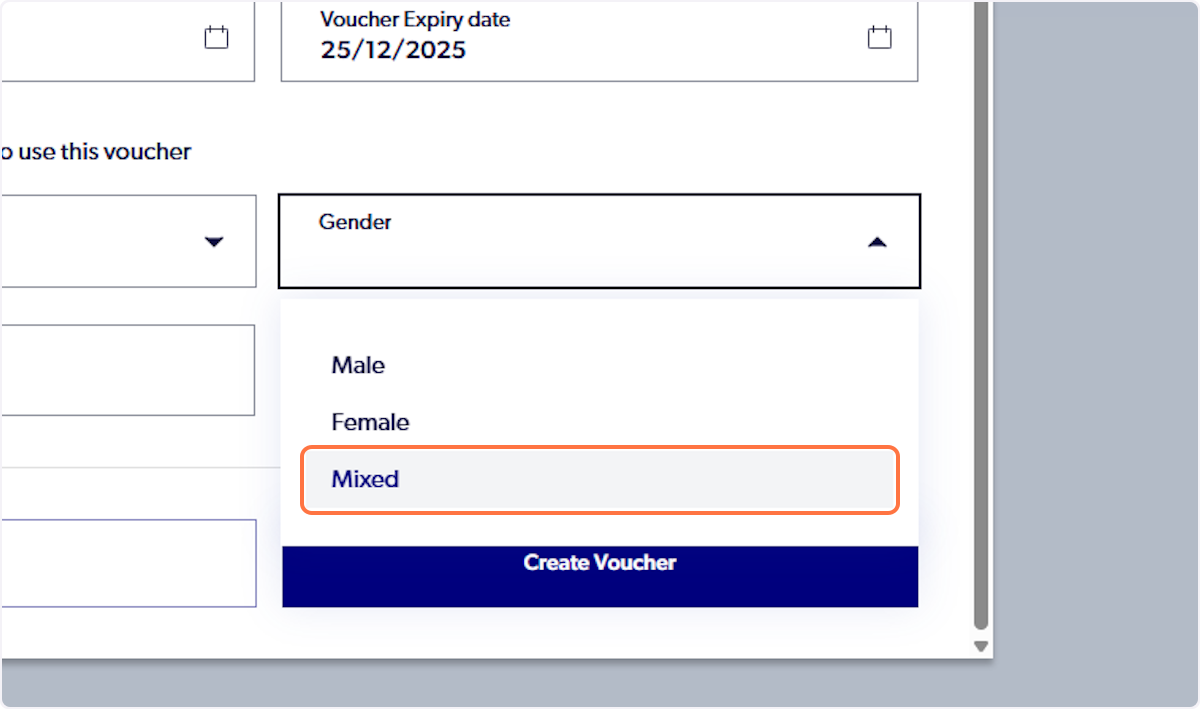
15. Select Gender
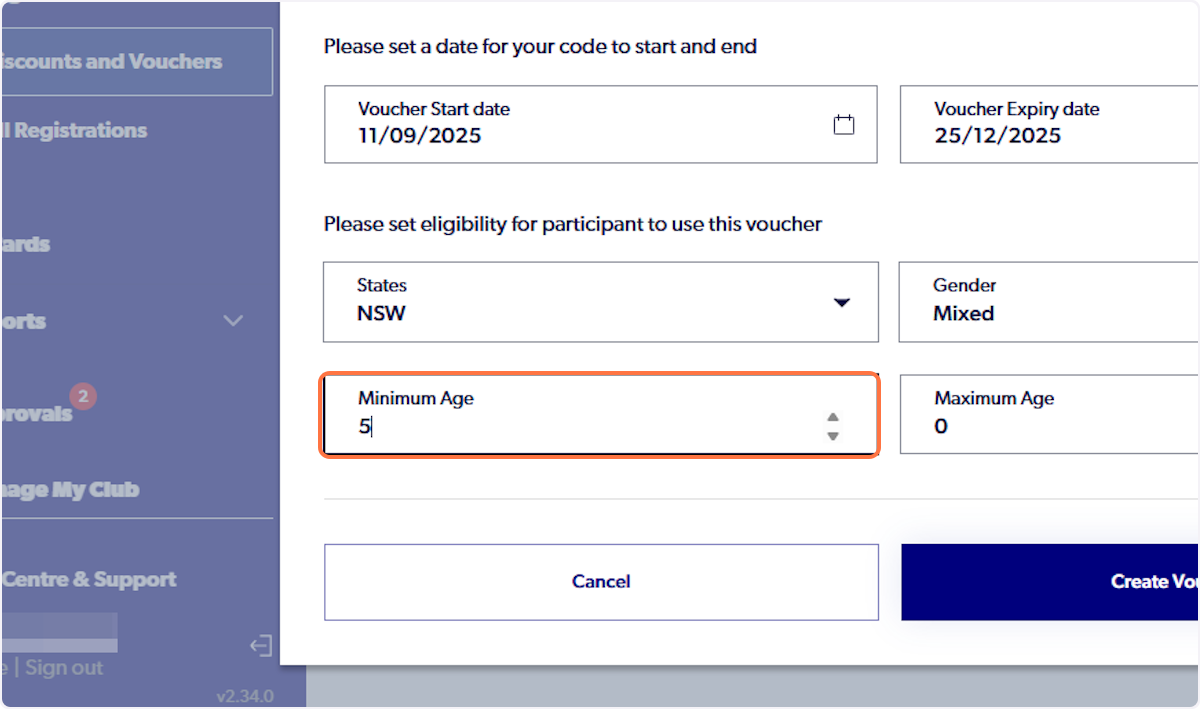
16. Choose Minimum Age
This is the minimum age of the player that can redeem the voucher
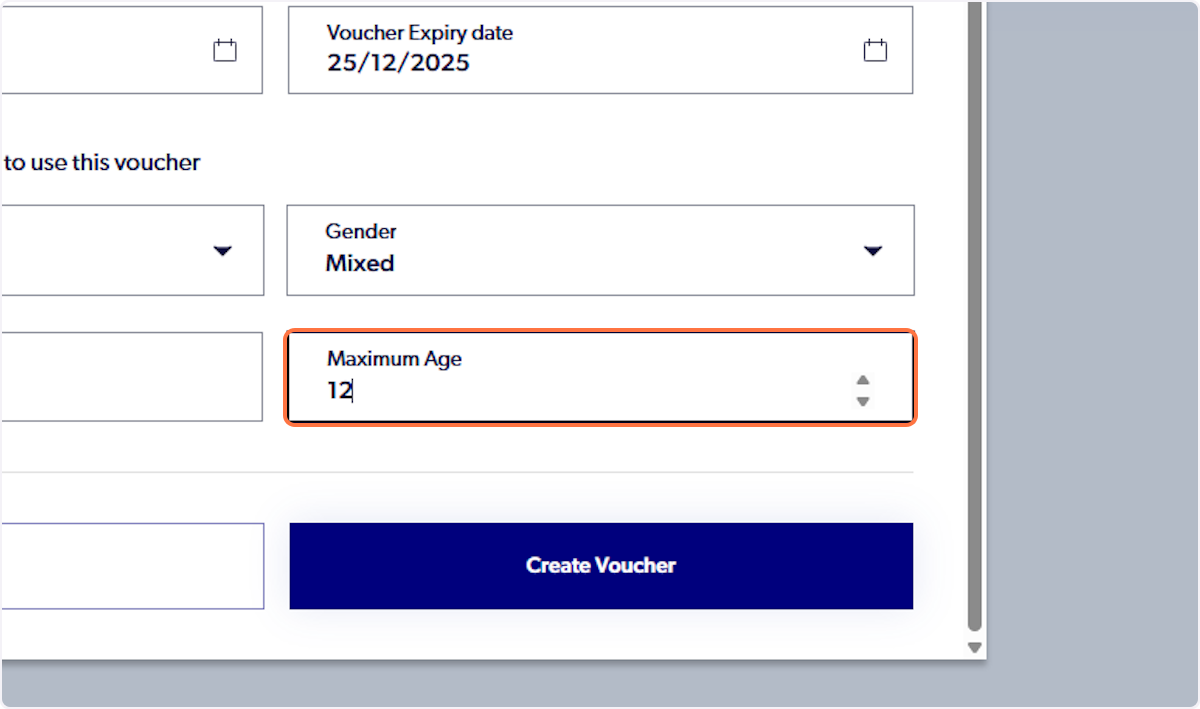
17. Choose Maximum Age
This is the maximum age of the player that can redeem the voucher
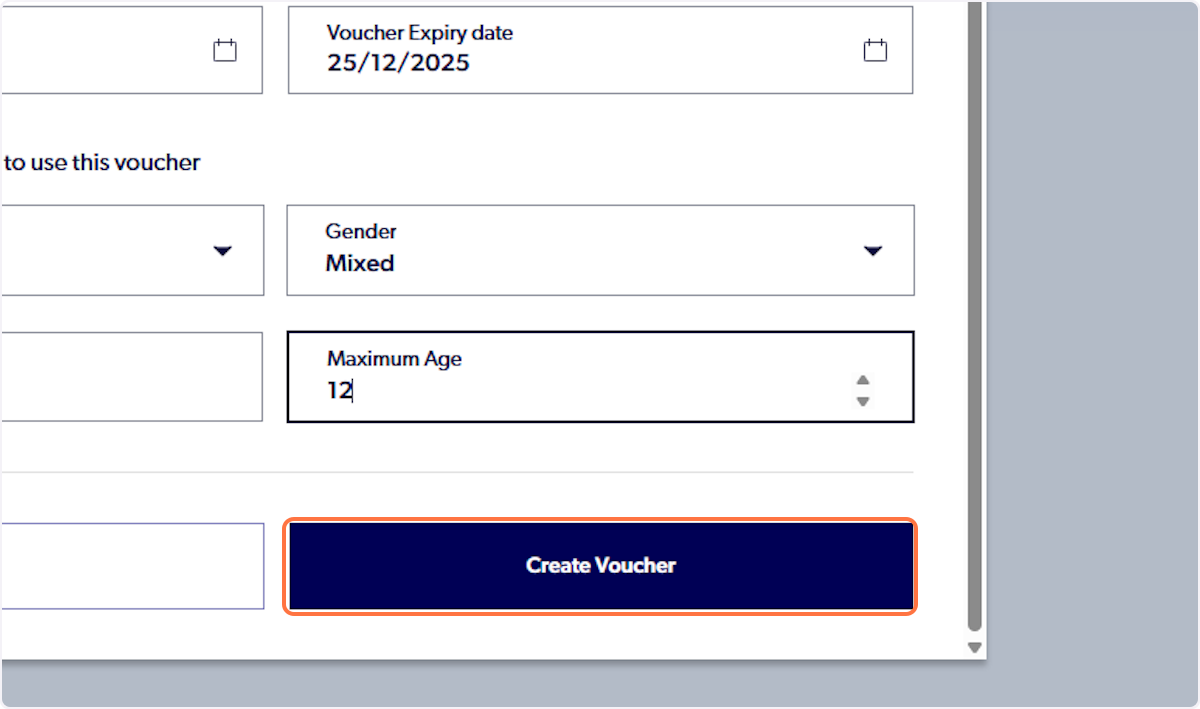
18. Click on Create Voucher
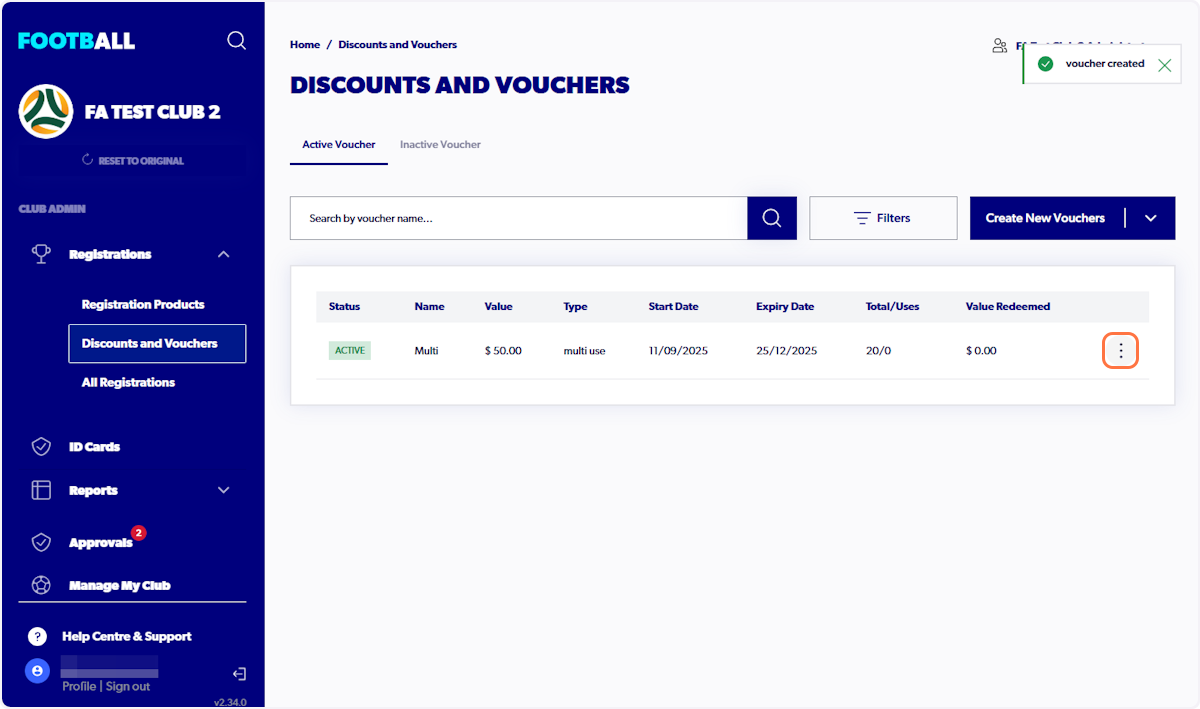
19. The Voucher will now appear under Discounts and Vouchers
You will be able to get the code by clicking on the three dots on the right-hand side.
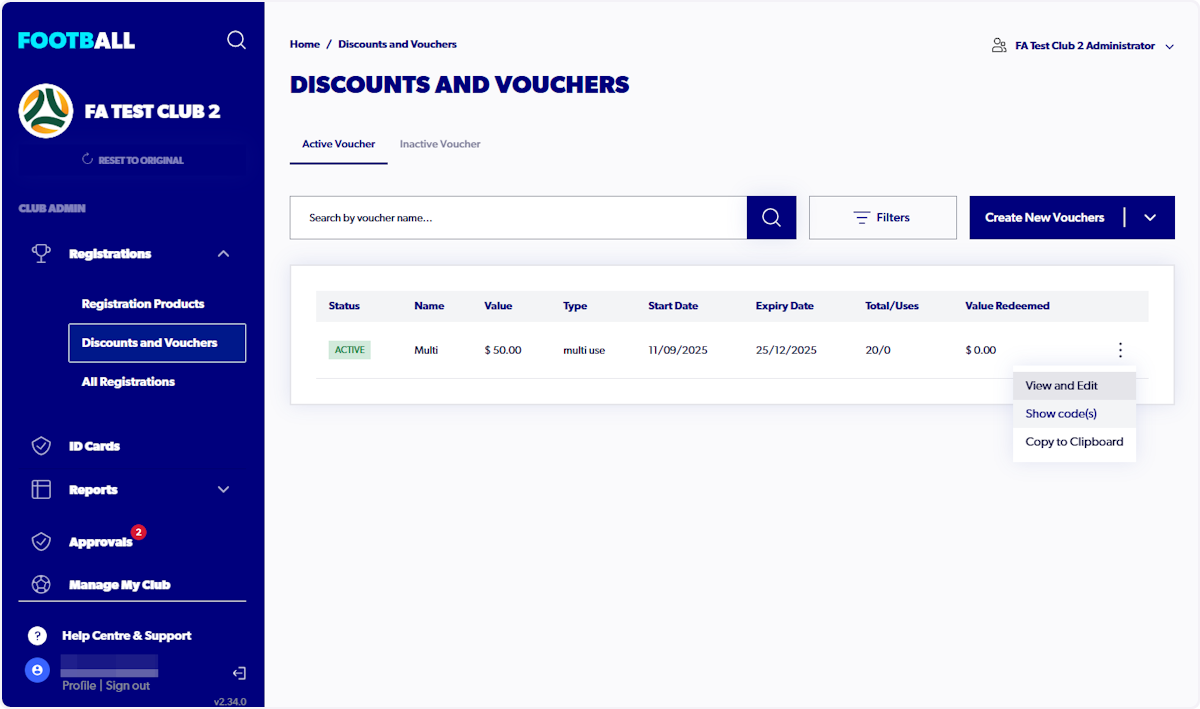
20. Click on Show code(s)
You also have options to: View and Edit the Voucher & Copy the Voucher Code
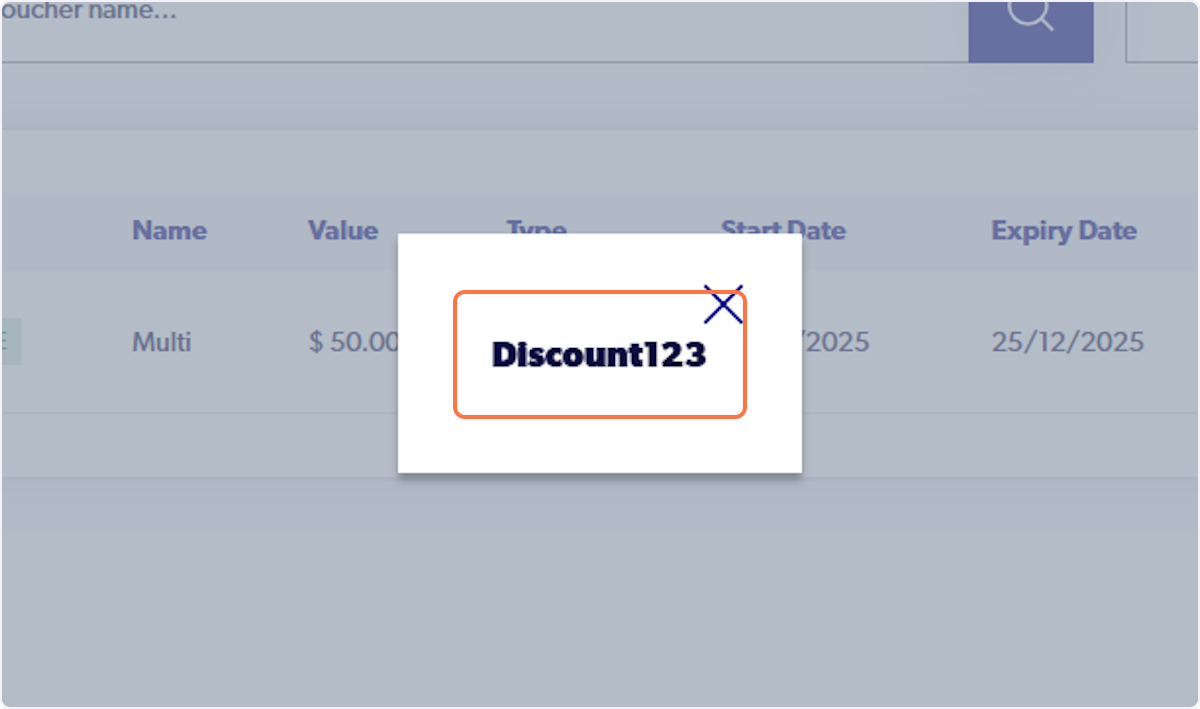
21. The Voucher code will show
This is the code that you will give to participants