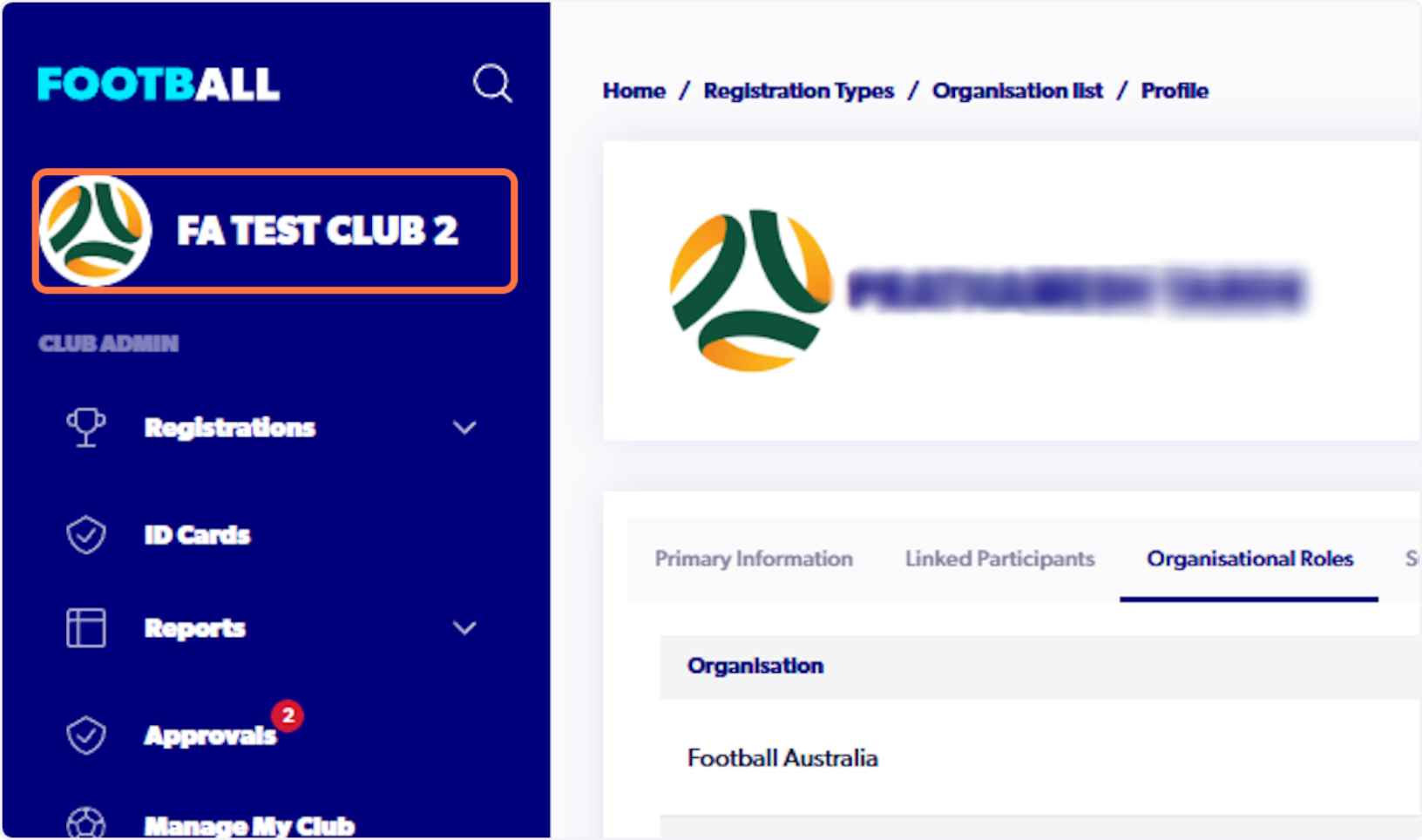
https://registration.playfootball.com.au/management/signin
ℹ️ For this support article, we will be granting an admin from FA Test Club 1 access to FA Test Club 2. We will be providing insight from two perspectives; the club admin from club 1 and the admin from club 2
ℹ️ Following Steps are from Club 1 perspective
1. At the moment the admin only has access to Club 1
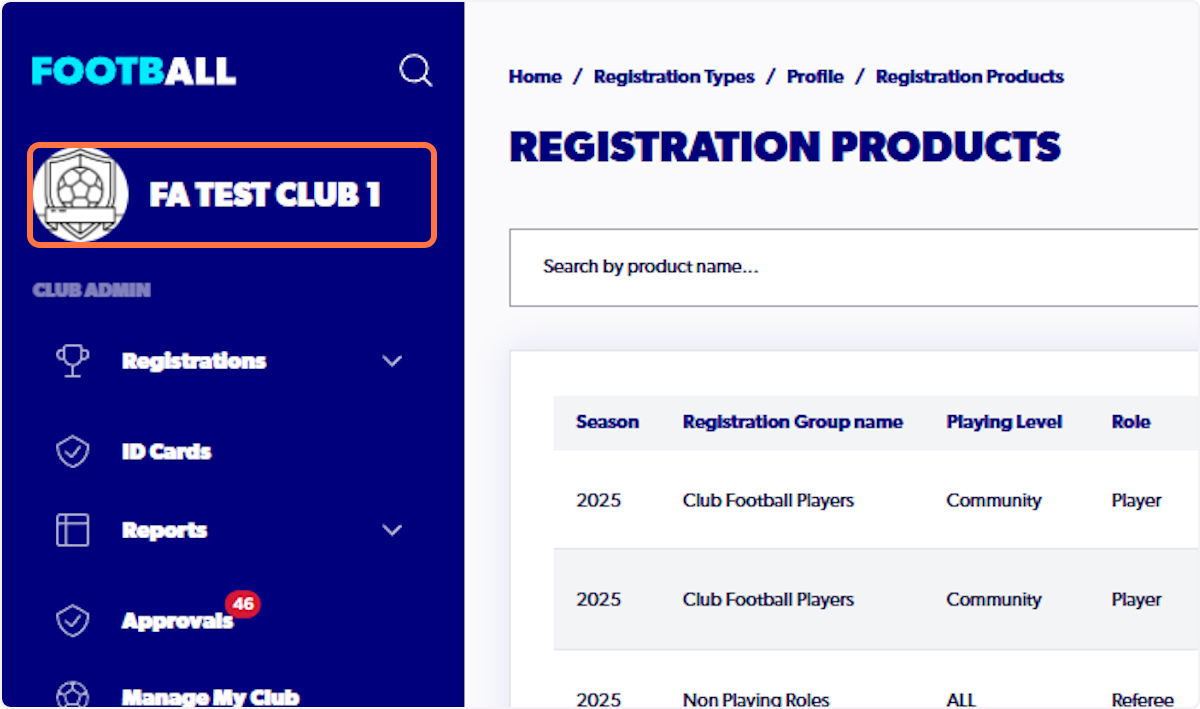
ℹ️ Following Steps is from the 2nd Club that you want to add another admin to
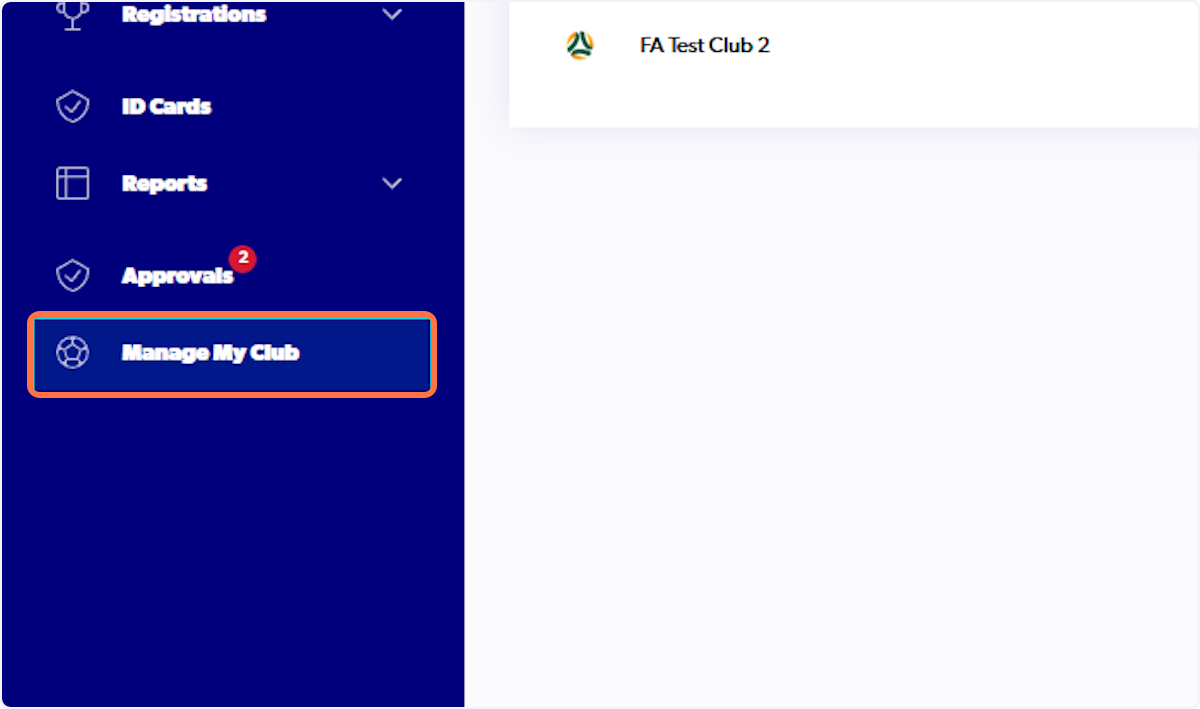
2. In order to invite an admin, click on Manage my Club
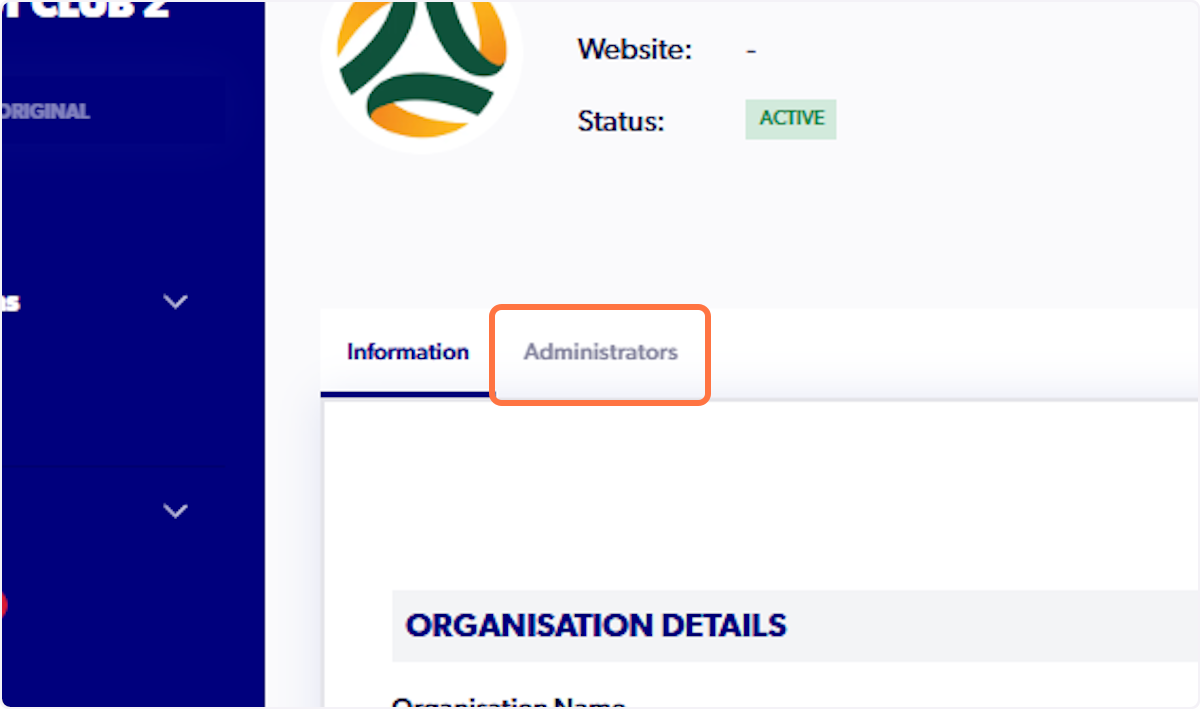
3. Click on Administrators
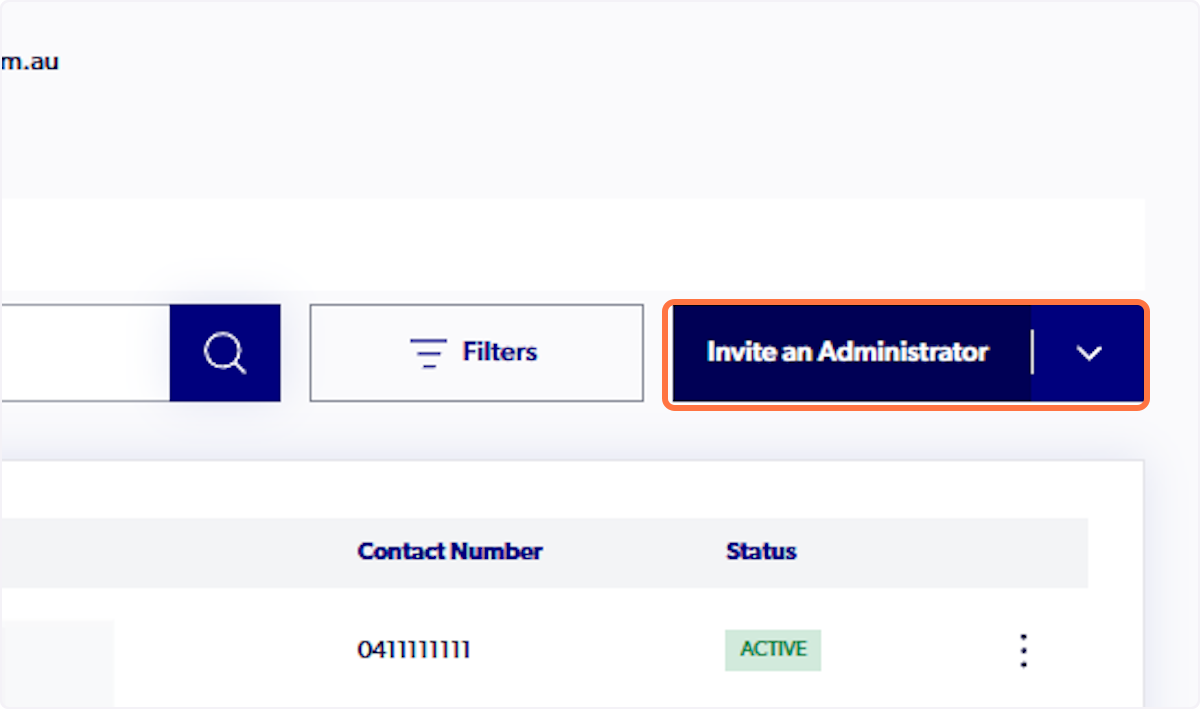
4. Click on Invite an Administrator
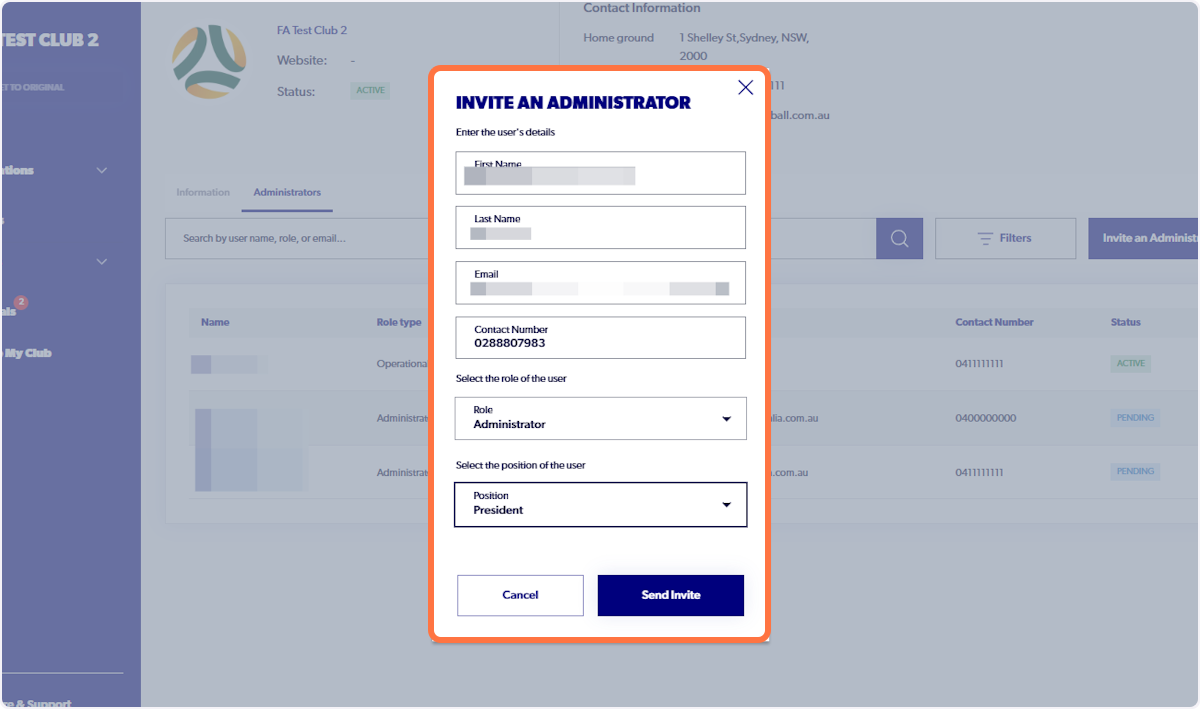
5. Fill out the relevant details and select Send Invite
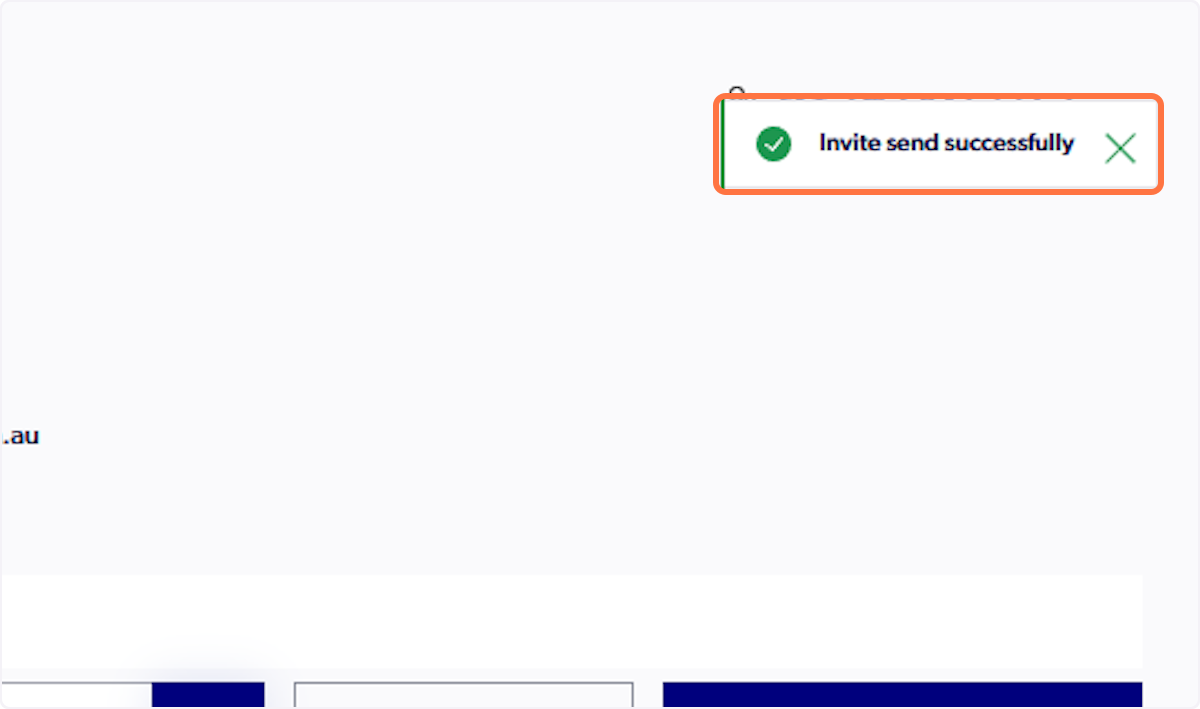
6. A pop-up will appear saying the invite has been sent out. Please note that a new email will NOT be sent out to the admin.
ℹ️ Following Flow is from Club 1
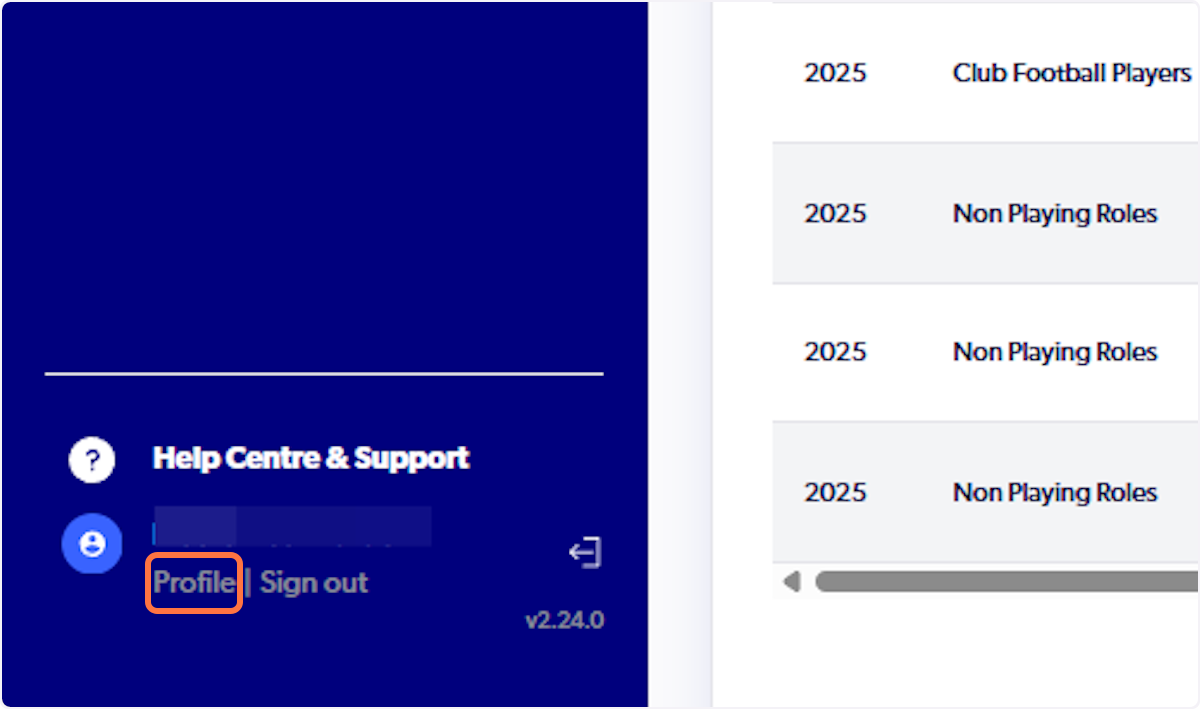
7. In order to gain access to Club 2, you will need to reupload your WWCC. Click on Profile
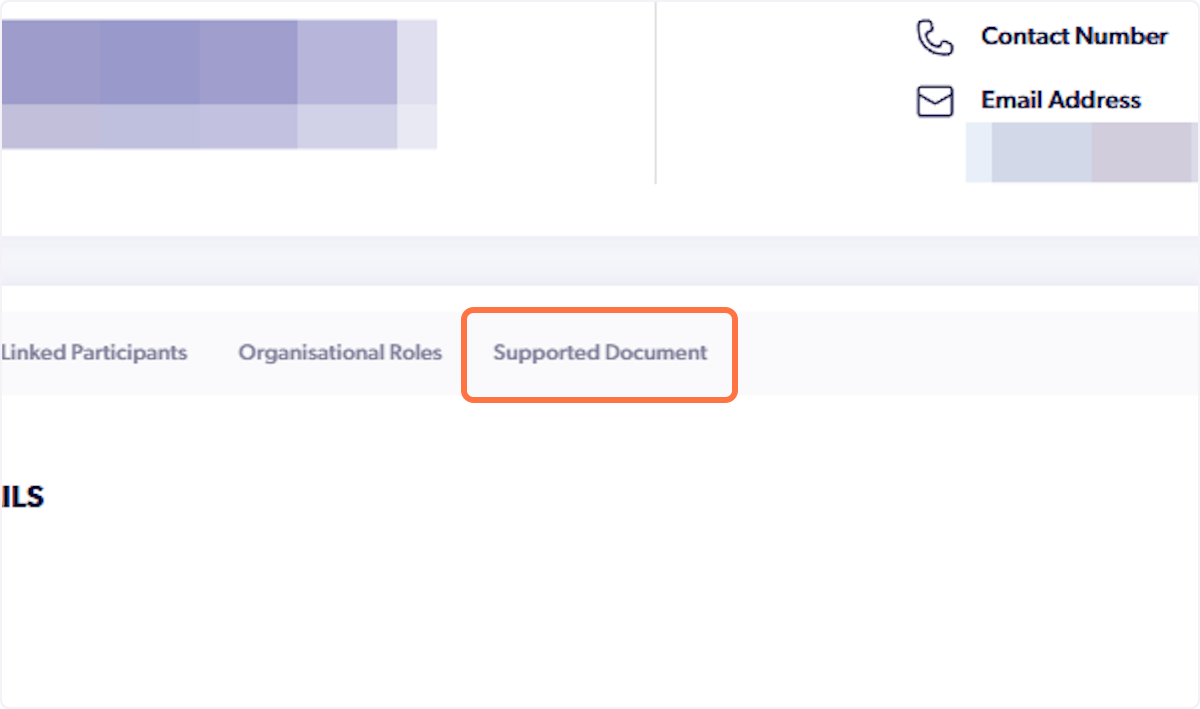
8. Click on Supported Document
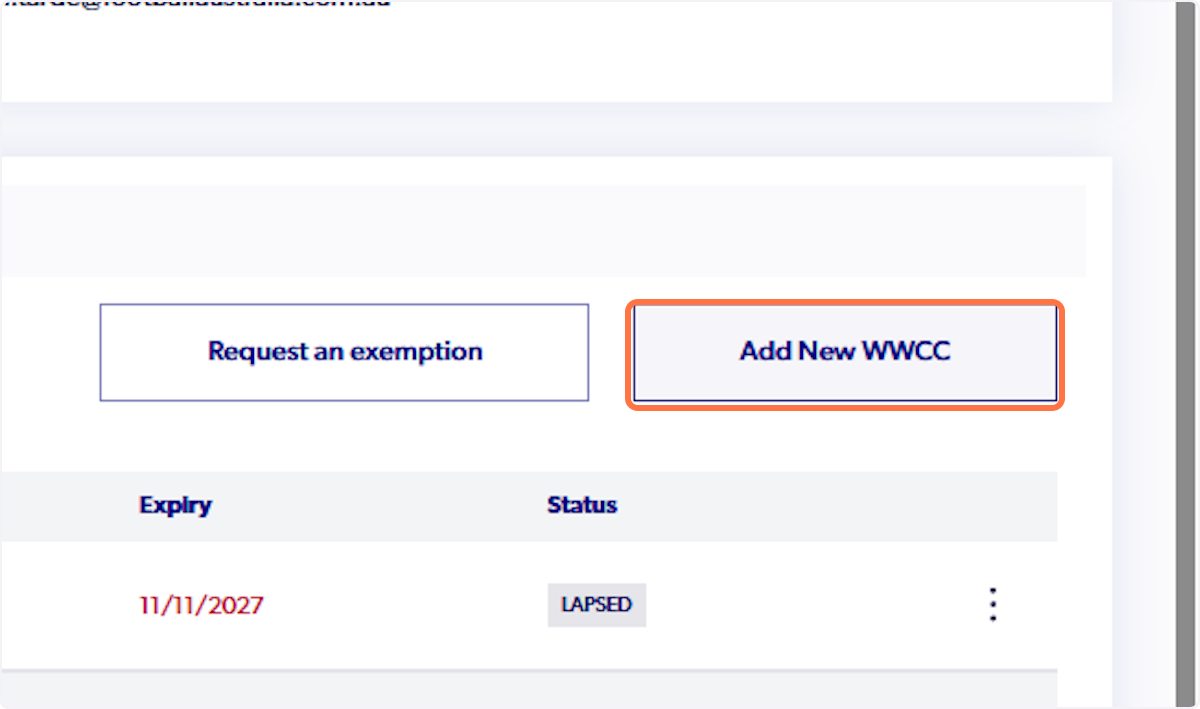
9. Click on Add New WWCC
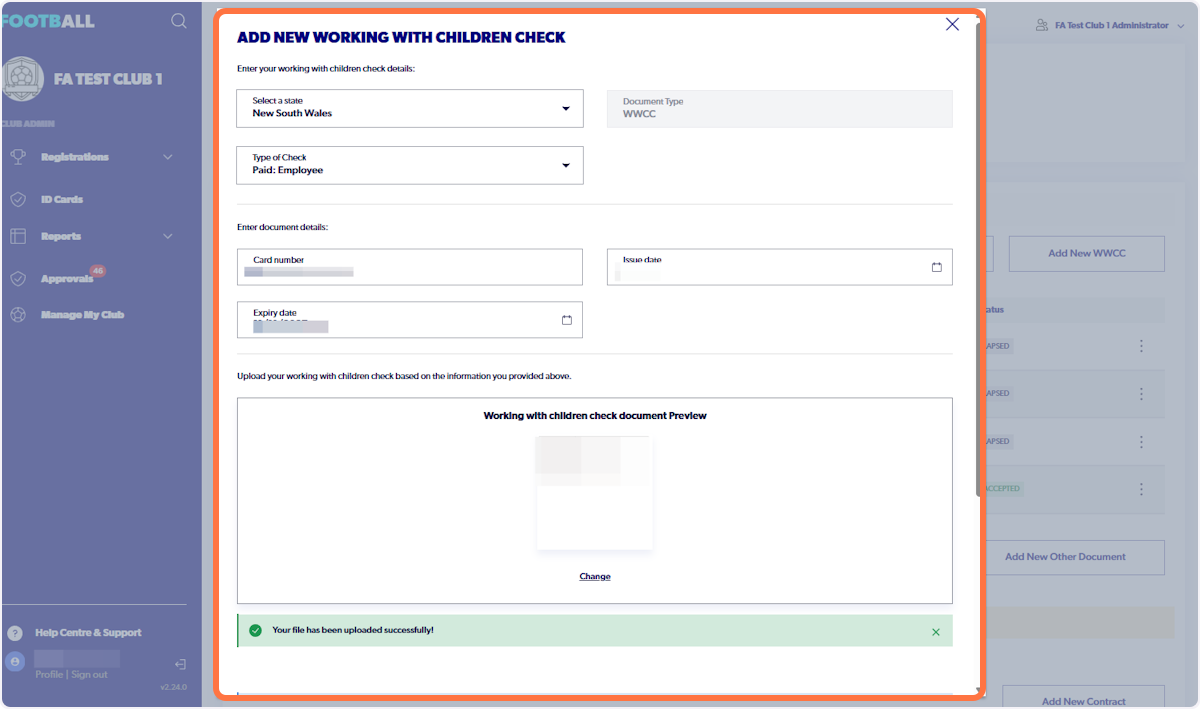
10. Fill in the fields, upload the WWCC document/confirmation
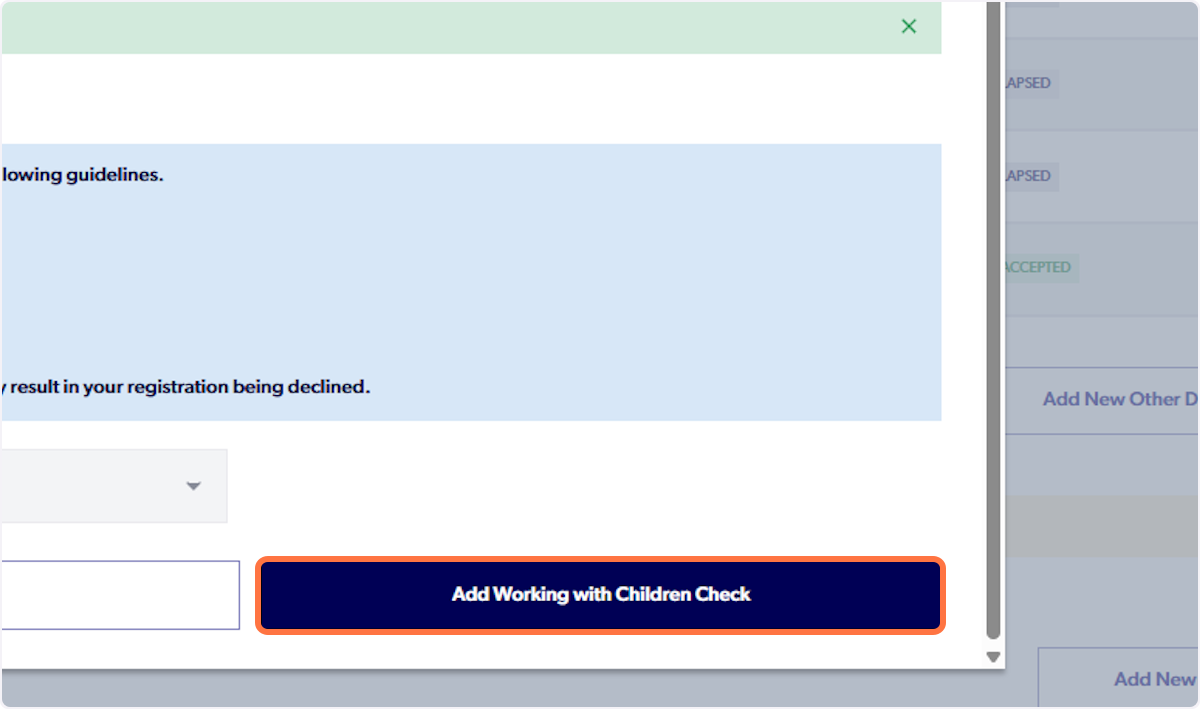
11. Click on Add Working with Children Check
12. The status will be pending
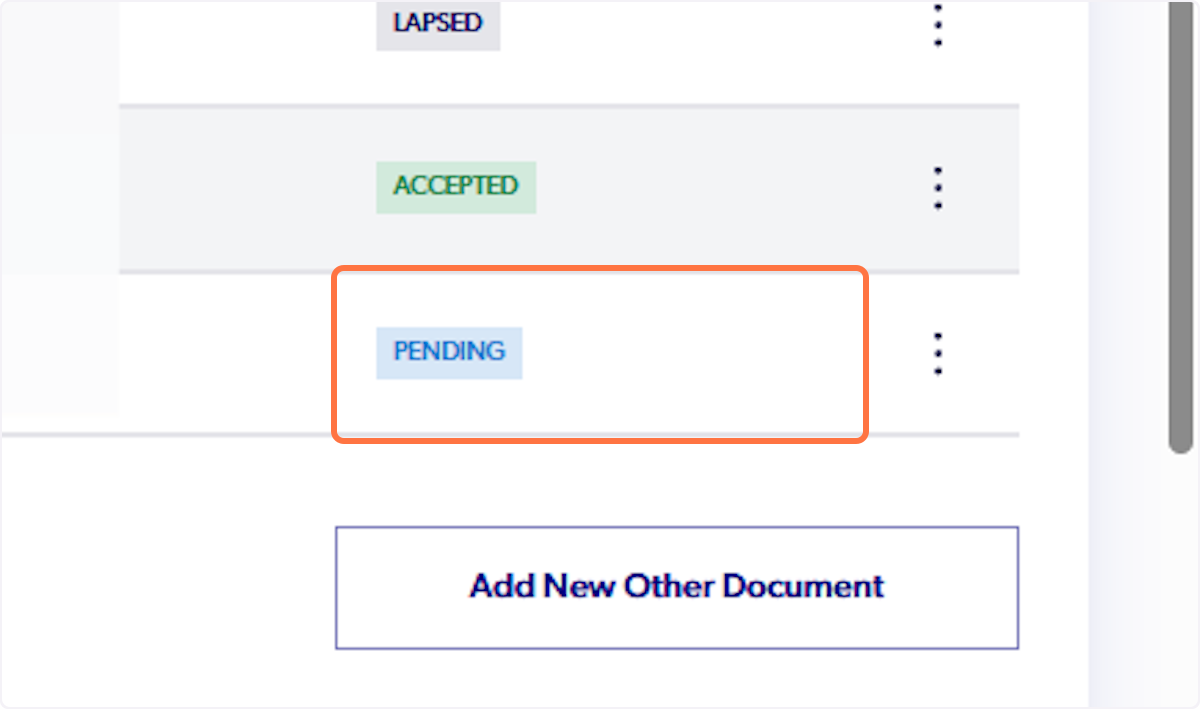
⚠️ The WWCC will now need to be approved by an admin at 2nd Club. Support article on how to do this:
https://myfootballclub.freshdesk.com/support/solutions/articles/22000287104-2025-registration-system-admin-how-to-cite-admin-wwcc
13. Now the WWCC has been approved. The Admin will be able to switch from Club 1 to Club 2 by clicking on the administrator tag on the top right
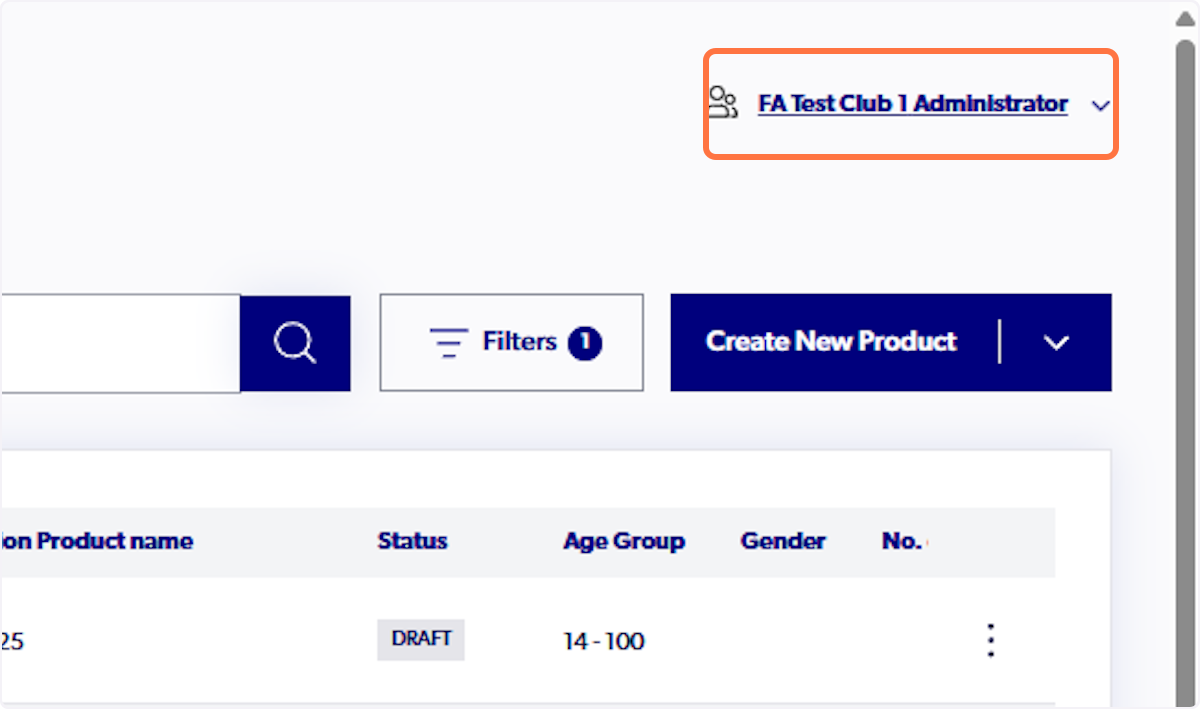
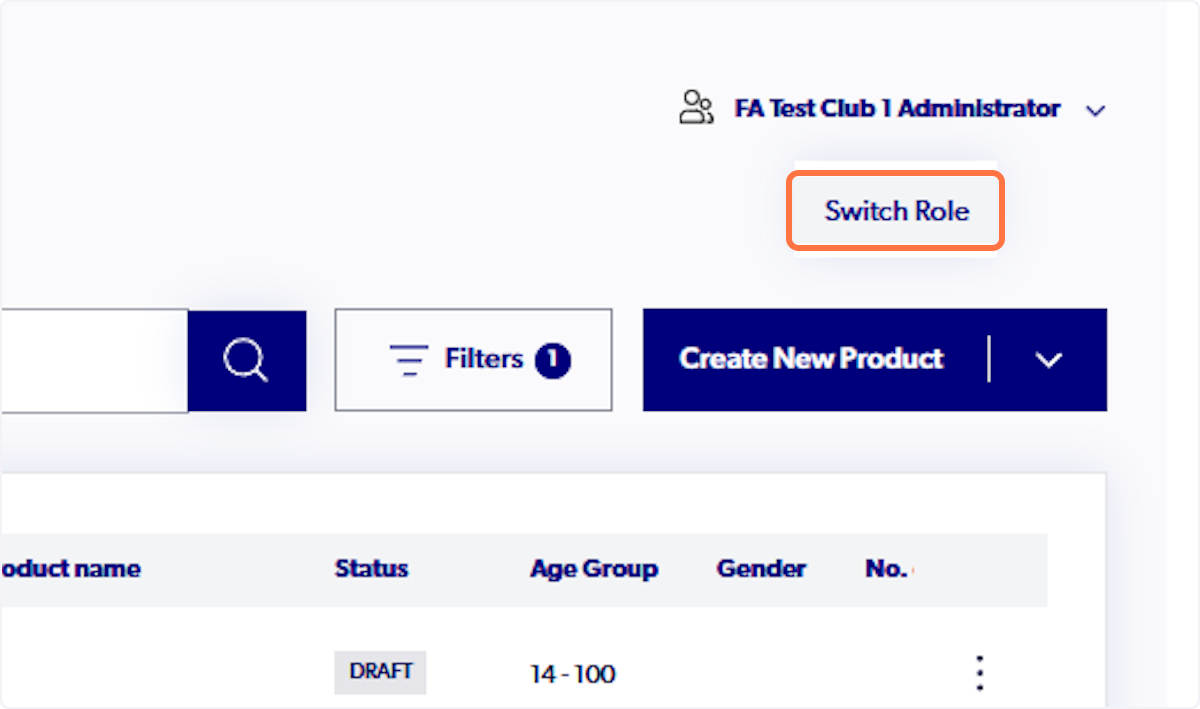
14. Click on Switch Role
15. The table will highlight the organisation's the admin has access to
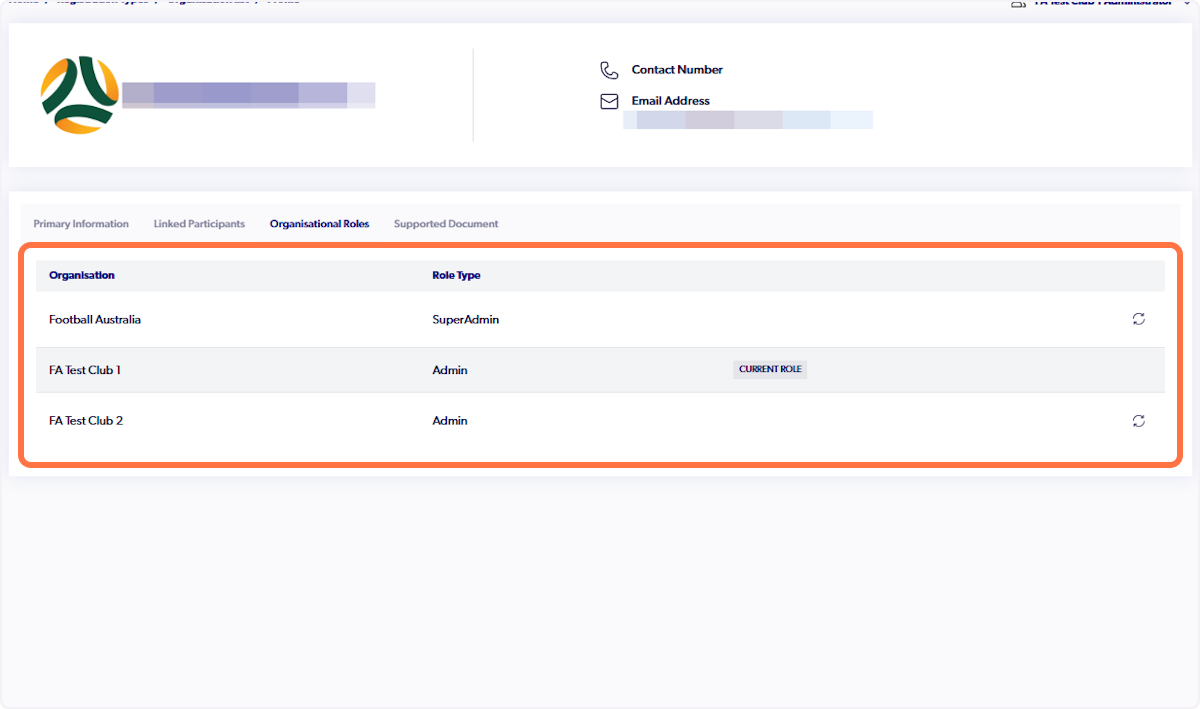
16. Click on Switch Role

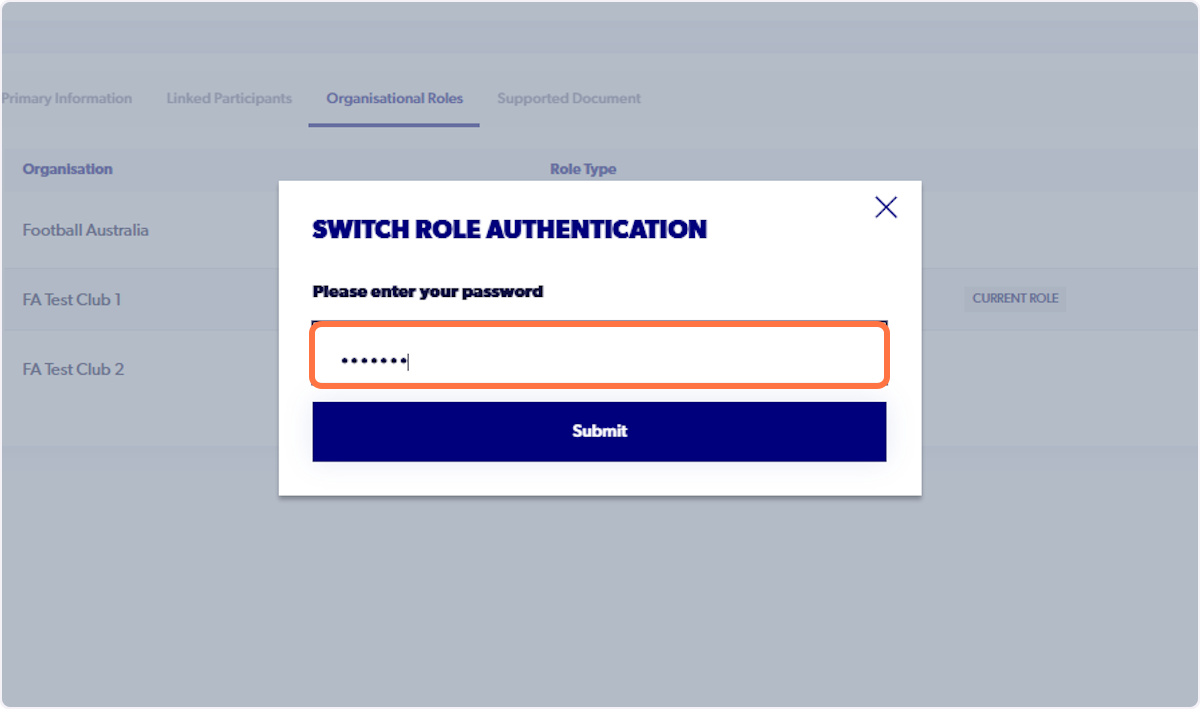
17. Type your admin password
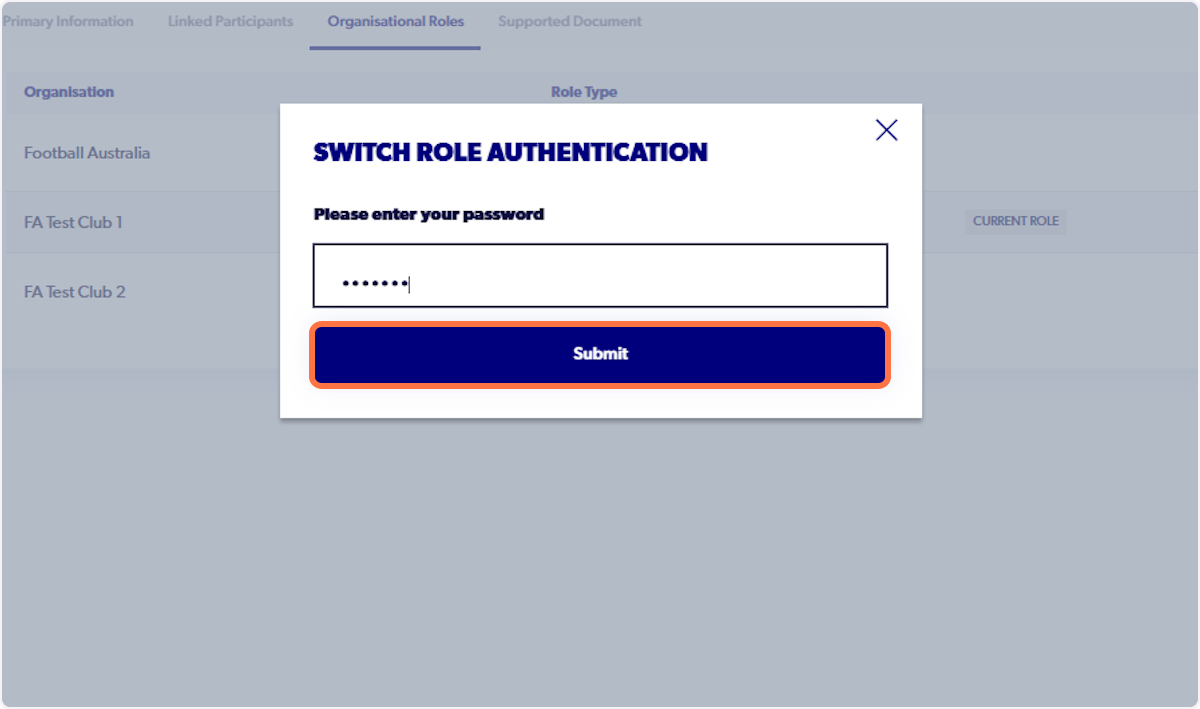
18. Click on Submit
19. You are now signed into Club 2!